Top-level Repeater Guide
This guide covers the stable, backwards-compatible workflow shared by Free and Pro: one top-level SCF/ACF Repeater rendered through an Elementor Loop Item.
1. Create the field group
In SCF/ACF → Field Groups, create a field group and add a Repeater.
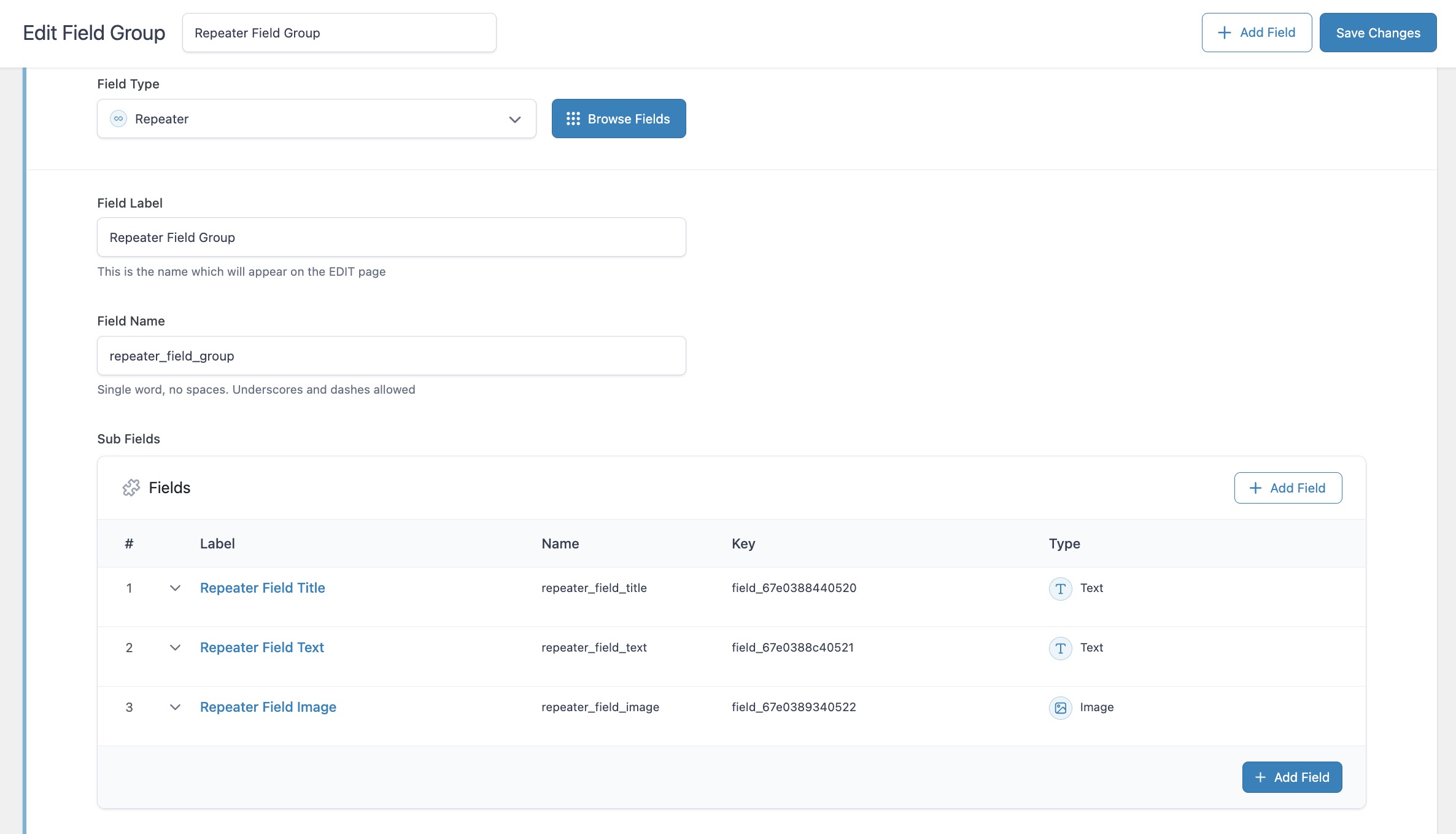
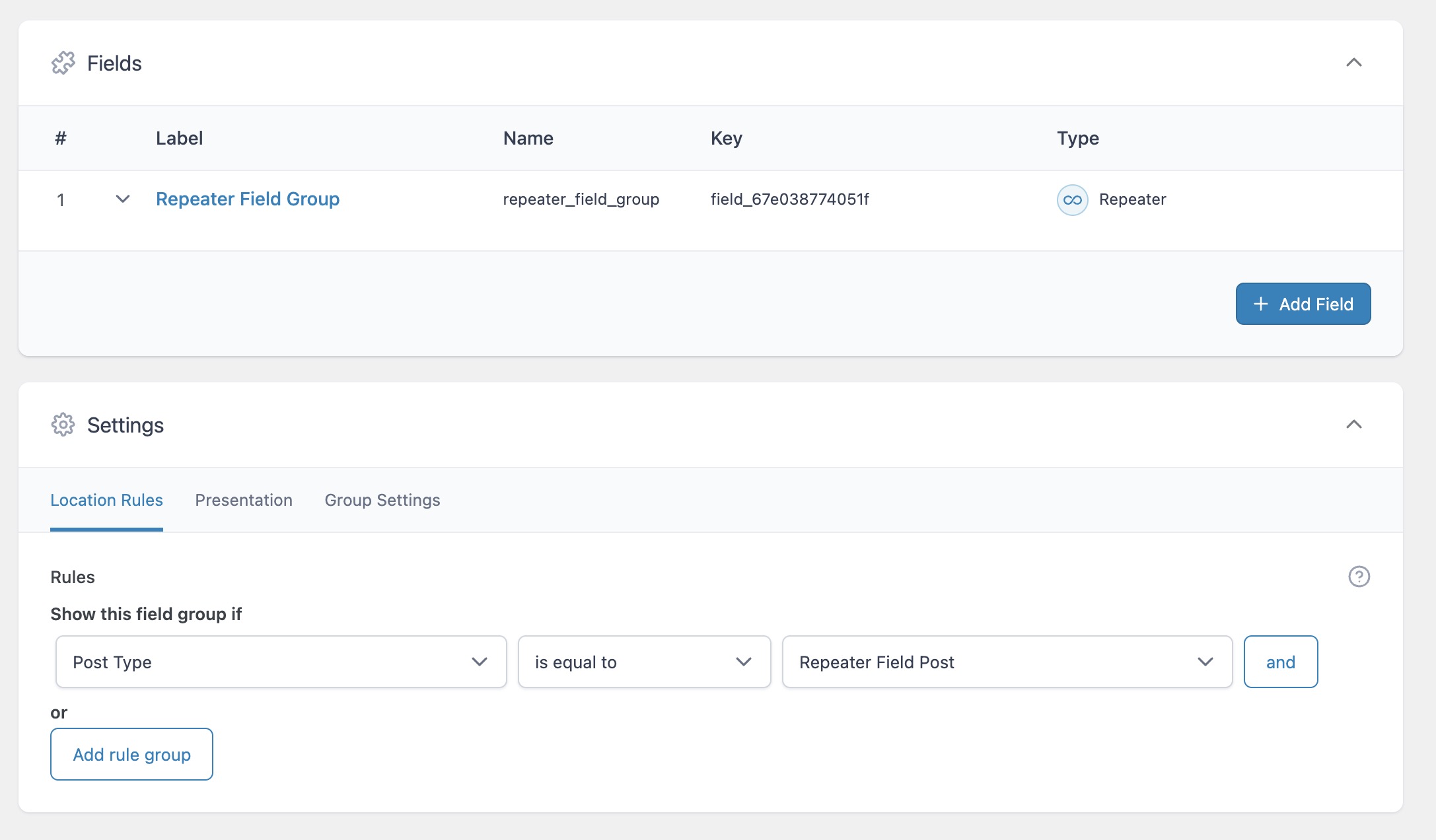
Add the subfields your template needs, then assign the group to the post type or page that will own the rows.
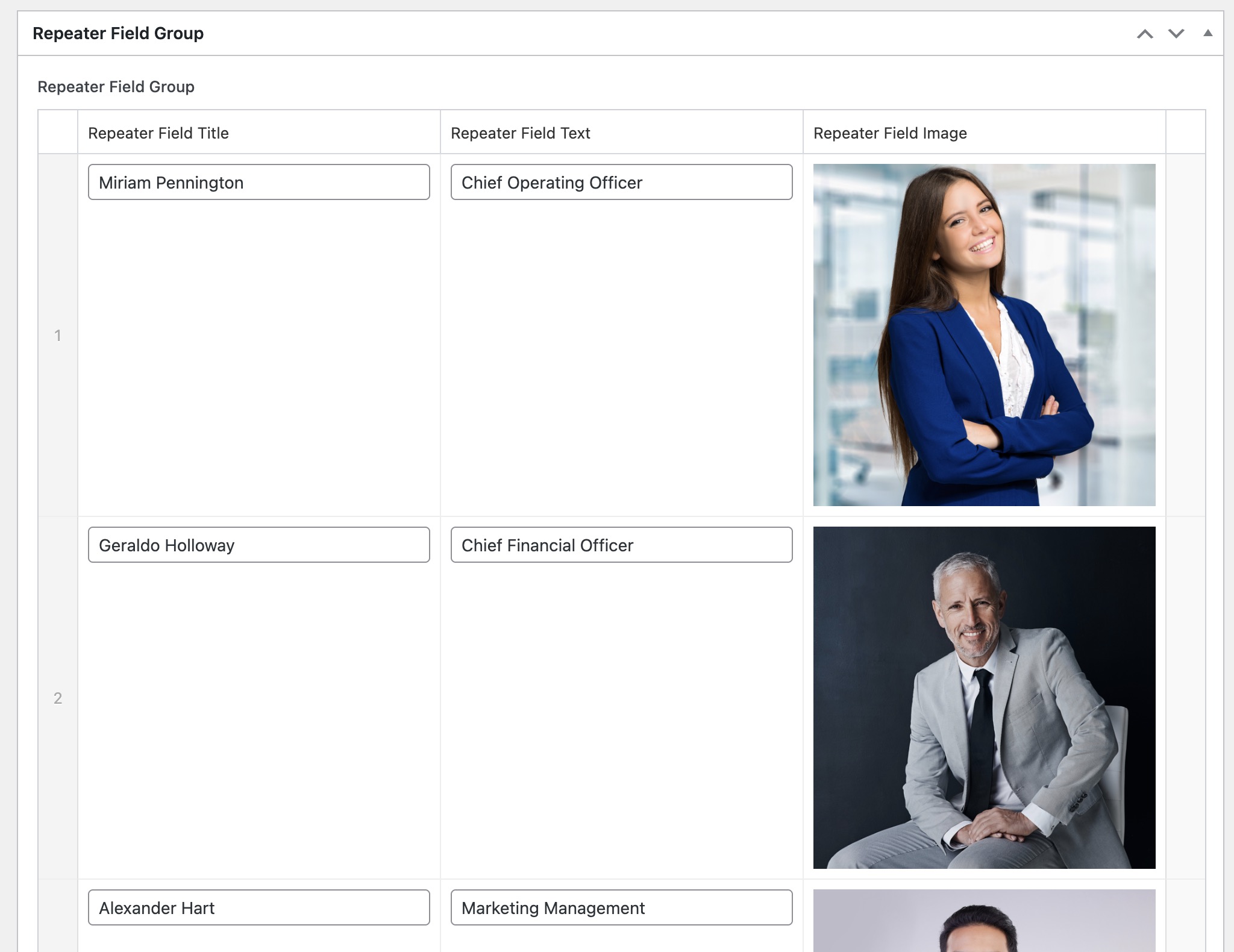
Edit at least one matching post and populate the Repeater.
2. Configure the Loop Item schema
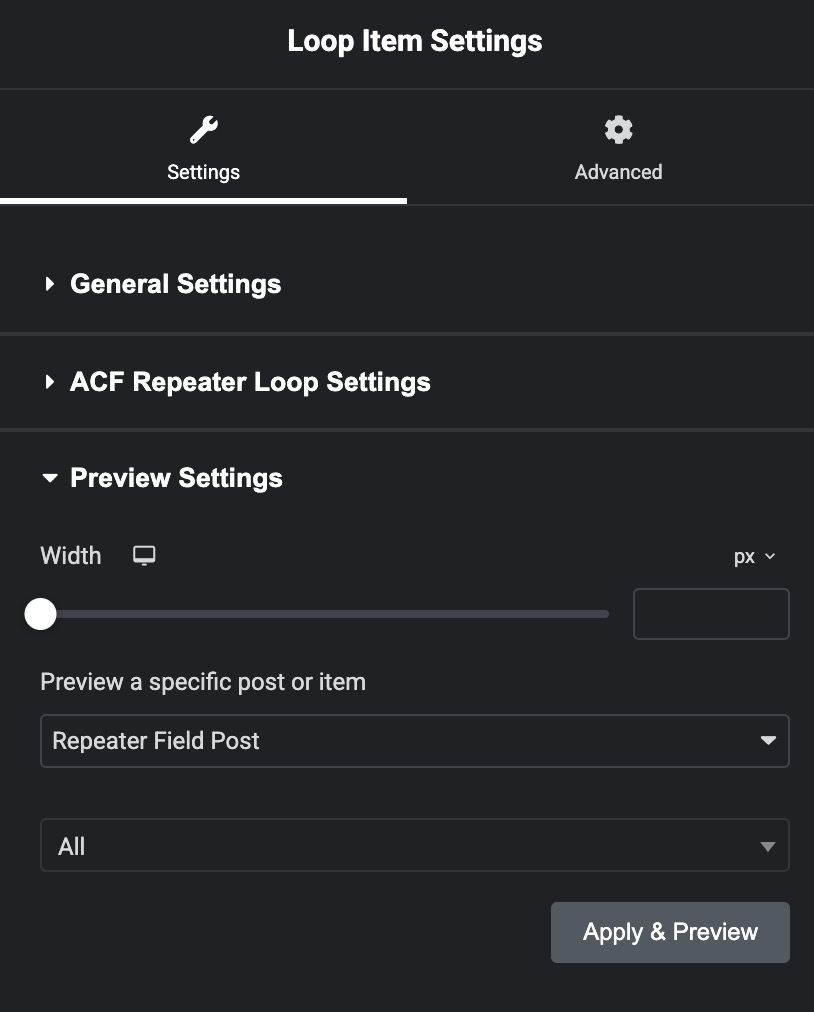
Create an Elementor Loop Item template. Before adding dynamic content, open the document settings and expand ACF Repeater Loop Settings.
- Free: choose ACF Repeater Field for Loop.
- Pro: choose ACF Row Schema for Loop.
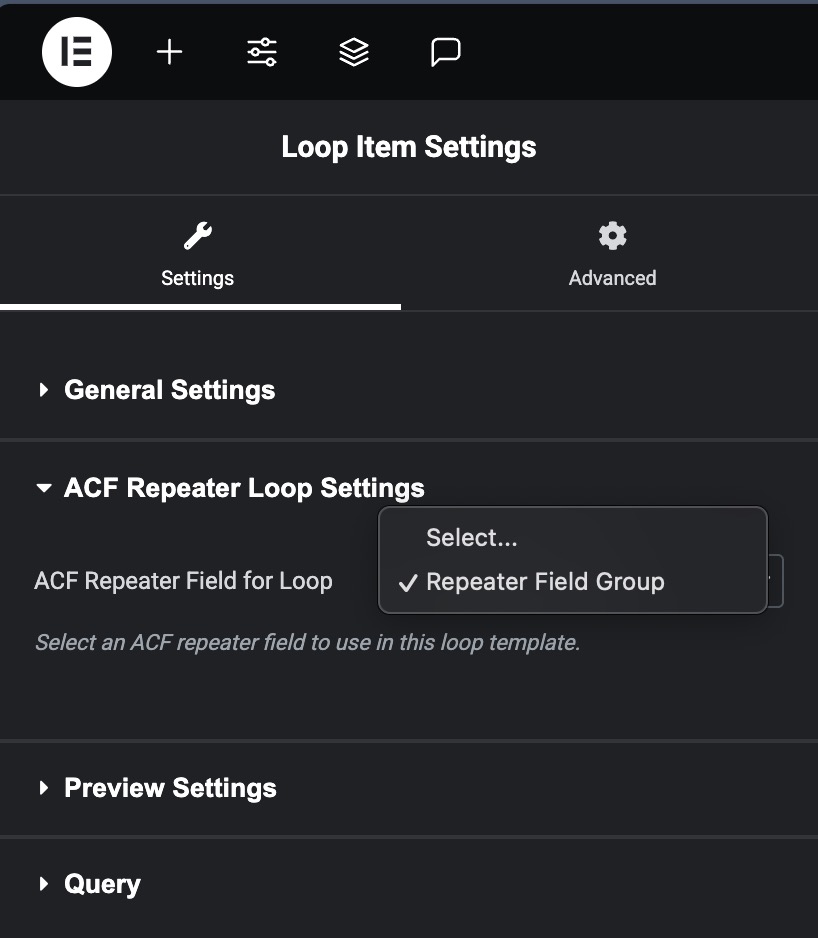
This selection tells the editor which subfields belong to the current row. It powers the field selectors shown by the plugin's dynamic tags.
Set Elementor's preview source to a post that contains rows. The preview source affects the editor only; it does not lock the published template to that post.
3. Design with Repeater dynamic tags
Build the Loop Item with normal Elementor widgets and containers.
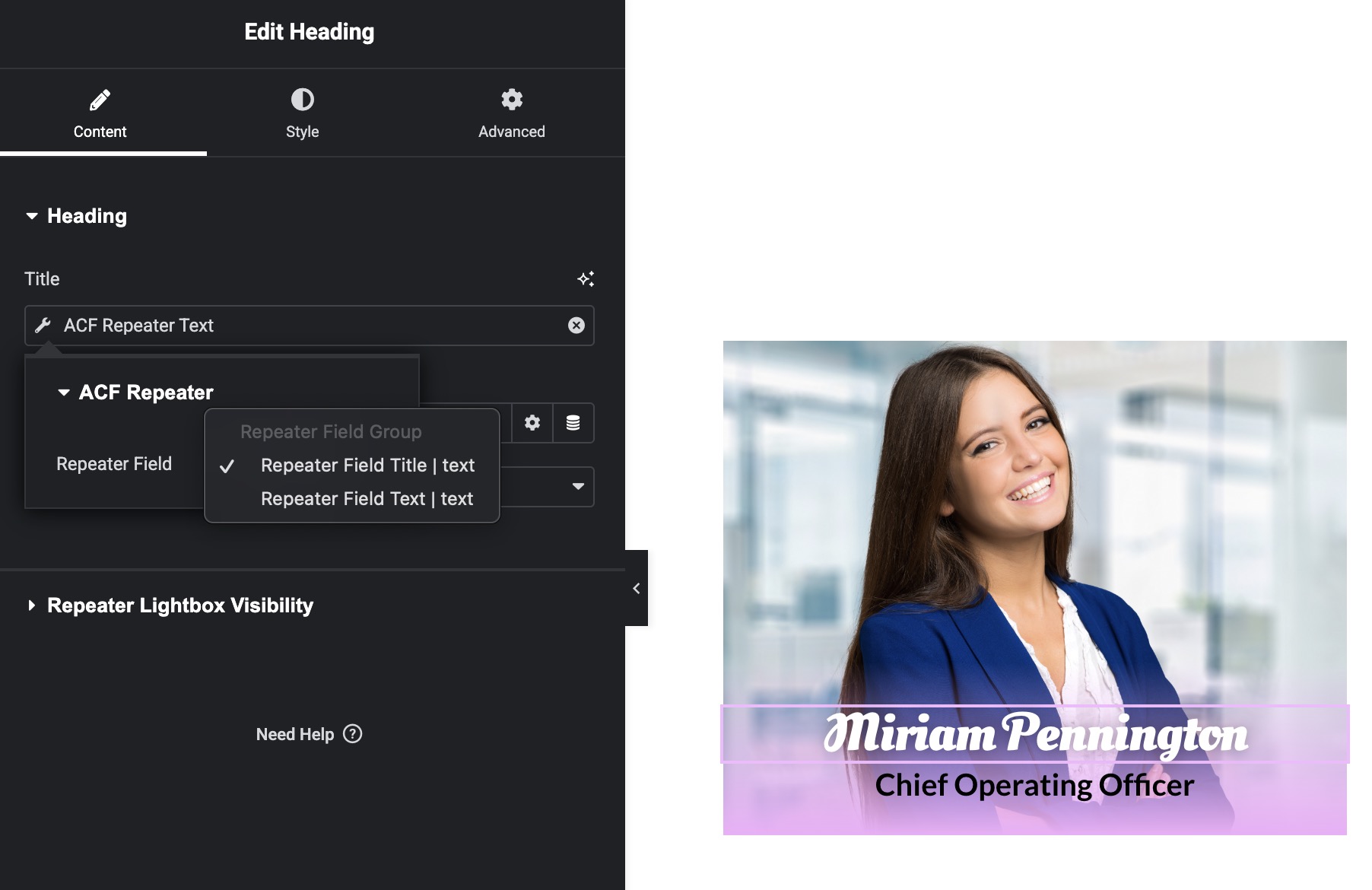
For text:
- Open a text-capable Elementor control.
- Select Dynamic Tags.
- Choose ACF Repeater Text.
- Open the tag settings and select the row subfield.
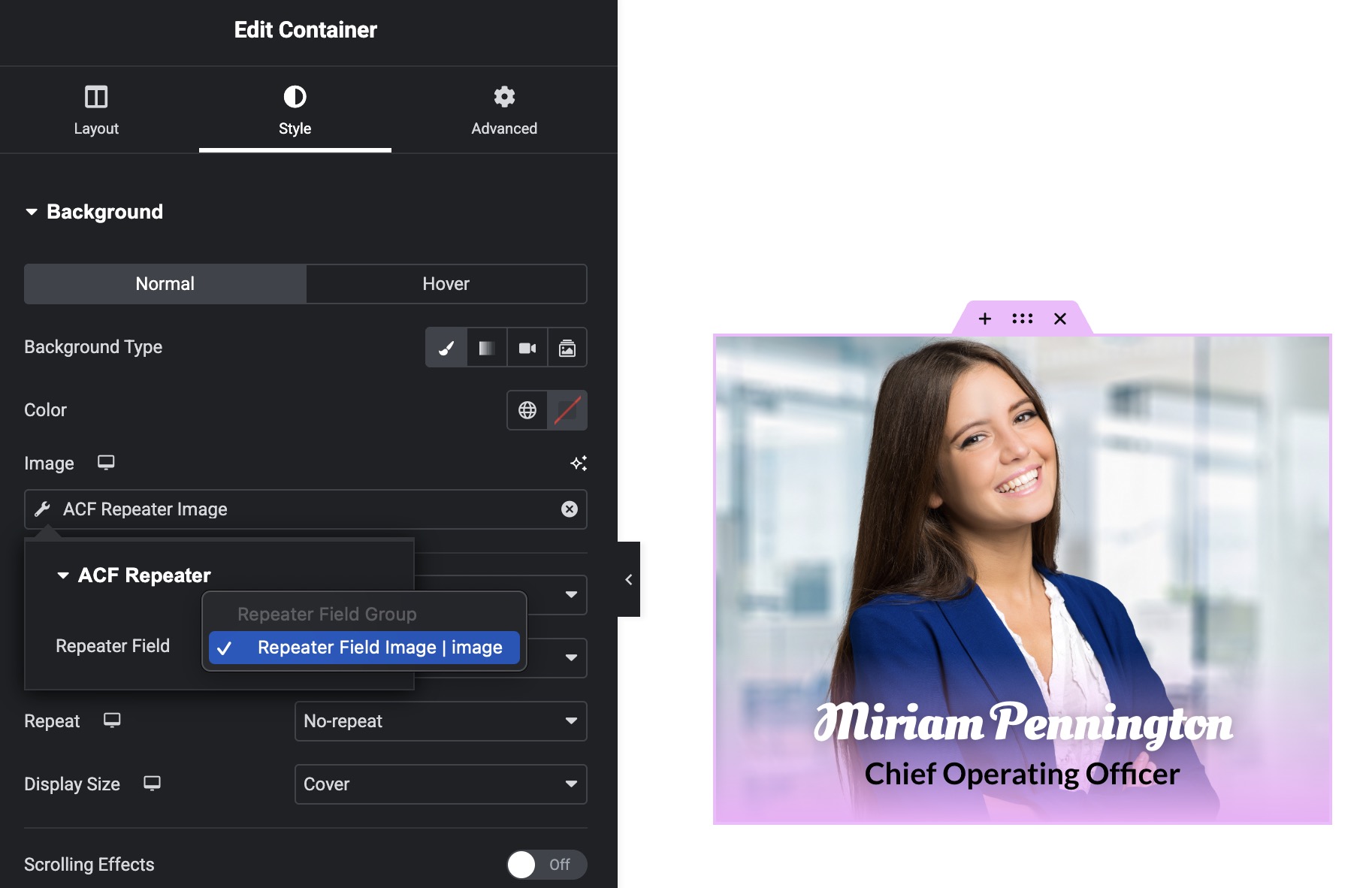
For an image or container background, choose ACF Repeater Image.
Use ACF Repeater Original Post Title to display the title of the post that owns the current row. The complete compatibility table is in Dynamic Tags and Field Types.
4. Configure the Loop Grid
Add Elementor's Loop Grid widget to a page or template and select the Loop Item.
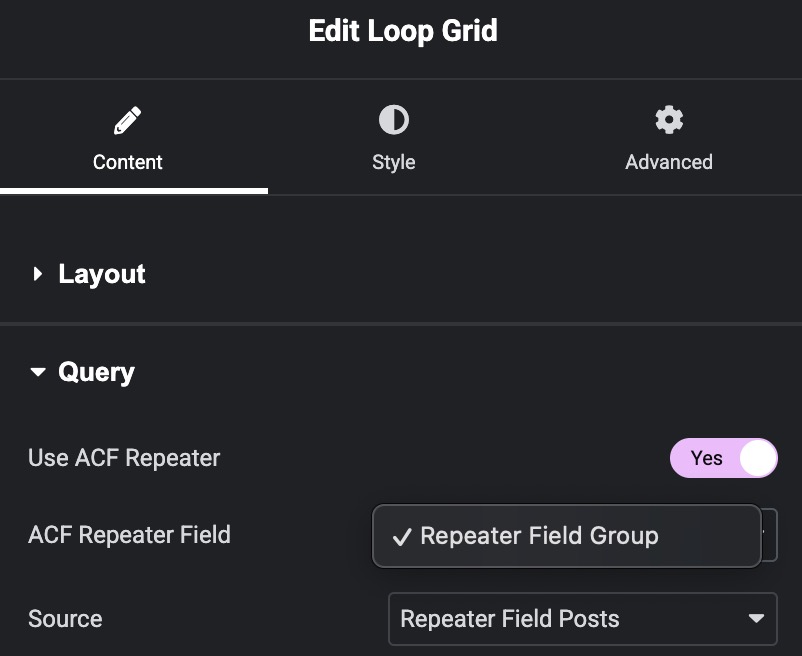
Open Query and enable the plugin's row source:
- Free: Use ACF Repeater → ACF Repeater Field.
- Pro: Use ACF Rows → ACF Row Source.
Query Current Post Only
When enabled, the widget reads rows only from the resolved source object—normally the current post. This is the expected setting for a single post, page, or Theme Builder template.
When disabled, Elementor's source query is allowed to return multiple posts and the plugin collects matching rows from those posts. This is useful for a combined directory or archive, but it can produce many more rows than a current-post display.
The source object can also be controlled explicitly. See Contexts.
5. Preview and publish
Use the same populated preview page or post you selected while designing the Loop Item, then preview the frontend.
Each Repeater row should render as one instance of the selected Loop Item.

Multiple templates and widgets
Both editions can use different Repeater fields in different Loop Item templates.
Free supports one repeater-powered Loop Grid on a rendered page. Pro supports multiple independent repeater-powered Loop Grids and Loop Carousels on the same page.
Options Page rows
Choose ACF Options as the source context when the Repeater is stored on an SCF/ACF Options Page. Automatic context can also fall back to Options when the normal source contains no rows. The exact resolution behavior is documented in Contexts.